



Библиотека сайта rus-linux.net
| Purchase | Copyright © 2002 Paul Sheer. Click here for copying permissions. | Home |

|

| |


Next: 22. Trivial Introduction to Up: rute Previous: 20. Advanced Shell Scripting Contents
Subsections
- 21.1 Using
lpr - 21.2 Downloading and Installing
- 21.3
LPRngvs. Legacylpr-0.nn - 21.4 Package Elements
- 21.5 The
printcapFile in Detail - 21.6 PostScript and the Print Filter
- 21.7 Access Control
- 21.8 Printing Troubleshooting
- 21.9 Useful Programs
- 21.10 Printing to Things Besides Printers
21. System Services and
lpd -- the Printer Service
This chapter covers a wide range of concepts about the way UNIX services function.
Every function of UNIX is provided by one or another package.
For instance, mail is often handled by the
sendmail or
other package, web by the
apache package.
Here we examine how to obtain, install, and configure
a
package, using
lpd as an example. You can then apply this
knowledge to any other package, and later chapters assume that
you know these concepts. This discussion will also suffice as an
explanation of how to set up and manage printing.
21.1 Using
lpr
Printing under UNIX on a properly configured machine is as
simple as typing
lpr -Plp <filename> (or
cat
<filename> | lpr -Plp
). The ``
lp'' in
-Plp is the
name of the printer queue on the local machine you
would like to print to. You can omit it if you are printing to
the default (i.e., the first listed) queue. A queue
belongs to a physical printer, so users can predict where
paper will come spewing out, by what queue they print to.
Queues are conventionally named
lp,
lp0,
lp1, and so on, and any number of them may have been
redirected to any other queue on any other machine on the
network.
The command
lprm removes pending jobs from
a print queue;
lpq reports jobs in progress.
The service that facilitates all this is called
lpd.
The
lpr user program makes a network connection to the
lpd background process, sending it the print job.
lpd then queues, filters, and feeds the job until it
appears in the print tray.
Printing typifies the client/server nature of UNIX
services. The
lpd background process is the server
and is initiated by the
root user. The remaining commands
are client programs, and are run mostly by users.
21.2 Downloading and Installing
The following discussion should relieve the questions of ``Where do I get xxx service/package?'' and ``How do I install it?''. Full coverage of package management comes in Section 24.2, but here you briefly see how to use package managers with respect to a real system service.
Let us say we know nothing of the service except that it has something
to do with a file
/usr/sbin/lpd. First, we use our package managers
to find where the file comes from (Debian commands are shown in parentheses):
|
rpm -qf /usr/sbin/lpd( dpkg -S /usr/sbin/lpd ) |
Returns
lpr-0.nn
-n (for RedHat 6.2, or
LPRng-n
.n
.nn
-n on
RedHat 7.0, or
lpr on Debian). On RedHat
you may have to try this on a different machine because
rpm does not know about packages that are not installed.
Alternatively, if we would like to see whether a package
whose name contains the letters
lpr is installed:
|
rpm -qa | grep -i lpr( dpkg -l '*lpr*' ) |
If the package is not present, the package file will be on your CD-ROM and is easily installable with (RedHat 7.0 and Debian in braces):
|
rpm -i lpr-0.50-4.i386.rpm( rpm -i LPRng-3.6.24-2 )( dpkg -i lpr_0.48-1.deb ) |
(Much more about package management is covered in Chapter 24.)
The list of files which the
lpr package is comprises (easily
obtained with
rpm -ql lpr or
dpkg -L lpr) is approximately as follows:
5 10 |
/etc/init.d/lpd /usr/share/man/man1/lprm.1.gz/etc/cron.weekly/lpr /usr/share/man/man5/printcap.5.gz/usr/sbin/lpf /usr/share/man/man8/lpc.8.gz/usr/sbin/lpc /usr/share/man/man8/lpd.8.gz/usr/sbin/lpd /usr/share/man/man8/pac.8.gz/usr/sbin/pac /usr/share/man/man8/lpf.8.gz/usr/bin/lpq /usr/share/doc/lpr/README.Debian/usr/bin/lpr /usr/share/doc/lpr/copyright/usr/bin/lprm /usr/share/doc/lpr/examples/printcap/usr/bin/lptest /usr/share/doc/lpr/changelog.gz/usr/share/man/man1/lpr.1.gz /usr/share/doc/lpr/changelog.Debian.gz/usr/share/man/man1/lptest.1.gz /var/spool/lpd/lp/usr/share/man/man1/lpq.1.gz /var/spool/lpd/remote |
21.3
LPRng vs. Legacy
lpr-0.nn
(The word legacy with regard to software means outdated, superseded, obsolete, or just old.)
RedHat 7.0 has now switched to using
LPRng rather than the legacy
lpr that Debian and other distributions use.
LPRng is a
more modern and comprehensive package. It supports the same
/etc/printcap
file and identical binaries as did the legacy
lpr on RedHat 6.2.
The only differences are in the control files created in your spool
directories, and a different access control mechanism (discussed below).
Note that
LPRng has strict permissions requirements on spool
directories and is not trivial to install from source.
21.4 Package Elements
A package's many files can be loosely grouped into functional elements.
In this sectiom, each element will be explained, drawing on the
lpr
package as an example. Refer to the list of files in Section
21.2.
21.4.1 Documentation files
Documentation should be your
first and foremost interest. Man
pages will not always be the only documentation provided.
Above we see that
lpr does not install very much
into the
/usr/share/doc directory. However, other
packages, like
rpm -ql apache, reveal a huge user manual (in
/home/httpd/html/manual/ or
/var/www/html/manual/), and
rpm -ql wu-ftpd
shows lots inside
/usr/doc/wu-ftpd-?
.?
.?.
21.4.2 Web pages, mailing lists, and download points
Every package will probably have a team that maintains it as
well as a web page. In the case of
lpd, however, the
code is very old, and the various CD vendors do maintenance on
it themselves. A better example is the
lprNG package.
Go to The LPRng Web Page <http://www.astart.com/lprng/LPRng.html>
with your web browser. There you can see the authors,
mailing lists, and points of download.
If a particular package is of much
interest to you, then you should become familiar with these
resources. Good web pages will also have additional
documentation like troubleshooting guides and FAQs
(Frequently Asked Questions). Some may even have archives
of their mailing lists. Note that some web pages are geared
more toward CD vendors who are trying to create their own
distribution and so will not have packages for download that
beginner users can easily install.
21.4.3 User programs
User programs are found in one or another
bin directory. In this case,
we can see
lpq,
lpr,
lprm, and
lptest,
as well as their associated
man pages.
21.4.4 Daemon and administrator programs
Daemon and administrator command will an
sbin directory. In this case
we can see
lpc,
lpd,
lpf, and
pac, as
well as their associated
man pages. The only
daemon (background) program is really the
lpd
program itself, which is the core of the whole package.
21.4.5 Configuration files
The file
/etc/printcap controls
lpd. Most system
services will have a file in
/etc.
printcap is a plain
text file that
lpd reads on startup. Configuring any
service primarily involves editing its configuration file. Several
graphical configuration tools are available that avoid this
inconvenience (
printtool, which is especially for
lpd,
and
linuxconf), but these actually just silently produce the
same configuration file.
Because printing is so integral to the system,
printcap is not
actually provided by the
lpr package. Trying
rpm -qf /etc/printcap gives
setup-2.3.4-1, and
dpkg -S /etc/printcap shows it to not be owned (i.e., it is part of
the base system).
21.4.6 Service initialization files
The files in
/etc/rc.d/init.d/ (or
/etc/init.d/) are the
startup and shutdown scripts to run
lpd on boot and shutdown. You
can start
lpd yourself on the command-line with
|
/usr/sbin/lpd |
but it is preferably to use the given script:
|
/etc/rc.d/init.d/lpd start/etc/rc.d/init.d/lpd stop |
(or
/etc/init.d/lpd). The script has other uses as well:
|
/etc/rc.d/init.d/lpd status/etc/rc.d/init.d/lpd restart |
(or
/etc/init.d/lpd).
To make sure that
lpd runs on startup, you
can check that it has a symlink under the appropriate run level.
The symlinks can be explained by running
|
ls -al `find /etc -name '*lpd*'`find /etc -name '*lpd*' -ls |
showing,
5 10 |
-rw-r--r-- 1 root root 17335 Sep 25 2000 /etc/lpd.conf-rw-r--r-- 1 root root 10620 Sep 25 2000 /etc/lpd.perms-rwxr-xr-x 1 root root 2277 Sep 25 2000 /etc/rc.d/init.d/lpdlrwxrwxrwx 1 root root 13 Mar 21 14:03 /etc/rc.d/rc0.d/K60lpd -> ../init.d/lpdlrwxrwxrwx 1 root root 13 Mar 21 14:03 /etc/rc.d/rc1.d/K60lpd -> ../init.d/lpdlrwxrwxrwx 1 root root 13 Mar 21 14:03 /etc/rc.d/rc2.d/S60lpd -> ../init.d/lpdlrwxrwxrwx 1 root root 13 Mar 24 01:13 /etc/rc.d/rc3.d/S60lpd -> ../init.d/lpdlrwxrwxrwx 1 root root 13 Mar 21 14:03 /etc/rc.d/rc4.d/S60lpd -> ../init.d/lpdlrwxrwxrwx 1 root root 13 Mar 28 23:13 /etc/rc.d/rc5.d/S60lpd -> ../init.d/lpdlrwxrwxrwx 1 root root 13 Mar 21 14:03 /etc/rc.d/rc6.d/K60lpd -> ../init.d/lpd |
The ``
3'' in
rc3.d is the what are interested in.
Having
S60lpd symlinked to
lpd under
rc3.d
means that
lpd will be started when the system enters
run level 3, which is the system's state of usual operation.
Note that under RedHat the command
setup has a menu option
System Services. The
Services list will allow you to
manage what services come alive on boot, thus creating the symlinks
automatically. For Debian, check the man page for the
update-rc.d command.
More details on bootup are in Chapter 32.
21.4.7 Spool files
Systems services like
lpd,
innd,
sendmail,
and
uucp create intermediate files in the course of
processing each request. These are called spool files
and are stored somewhere under the
/var/spool/ directory,
usually to be processed and then deleted in sequence.
lpd has a spool directory
/var/spool/lpd,
which may have been created on installation. You can create
spool directories for the two printers
in the example below, with
|
mkdir -p /var/spool/lpd/lp /var/spool/lpd/lp0 |
21.4.8 Log files
UNIX has a strict policy of not reporting error messages to the user
interface whenever there might be no user around to read those messages.
Whereas error messages of interactive commands are sent to the terminal
screen, error or information messages produced by non-interactive
commands are ``logged'' to files in the directory
/var/log/.
A log file is a plain text file that continually has one-liner status
messages appended to it by a daemon process. The usual
directory for log files is
/var/log. The main log files are
/var/log/messages and possibly
/var/log/syslog.
It contains kernel messages and
messages from a few primary services. When a service would
produce large log files (think web access with thousands of hits
per hour), the service would use its own log file.
sendmail,
for example, uses
/var/log/maillog. Actually,
lpd
does not have a log file of its own--one of its failings.
View the system log file with the
follow option
to
tail:
|
tail -f /var/log/messagestail -f /var/log/syslog |
Restarting the
lpd service gives messages
like: [Not all distributions log this information.]
|
Jun 27 16:06:43 cericon lpd: lpd shutdown succeededJun 27 16:06:45 cericon lpd: lpd startup succeeded |
21.4.9 Log file rotation
Log files are rotated daily or weekly by the
logrotate package.
Its configuration file is
/etc/logrotate.conf. For each package
that happens to produce a log file, there is an additional configuration
file under
/etc/logrotate.d/. It is also easy to write your own--begin
by using one of the existing files as an example. Rotation means that the log
file is renamed with a
.1 extension and then truncated to zero
length. The service is notified by the
logrotate program, sometimes
with a
SIGHUP. Your
/var/log/ may contain a number of old
log files named
.2,
.3, etc. The point of log file rotation
is to prevent log files from growing indefinitely.
21.4.10 Environment variables
Most user commands of services make use of some environment variables.
These can be defined in your shell startup scripts as usual. For
lpr, if no printer is specified on the command-line, the
PRINTER environment variable determines the default print
queue. For example,
export PRINTER=lp1 will force use of the
lp1 print queue.
21.5 The
printcap File in Detail
The
printcap
(printer capabilities) file is similar to (and
based on) the
termcap
(terminal capabilities) file.
Configuring a printer means adding or removing text in this
file.
printcap contains a list of one-line entries, one for each printer.
Lines can be broken by a
\ before the newline. Here is an
example of a
printcap file for two printers.
5 10 |
lp:\ :sd=/var/spool/lpd/lp:\ :mx#0:\ :sh:\ :lp=/dev/lp0:\ :if=/var/spool/lpd/lp/filter:lp0:\ :sd=/var/spool/lpd/lp0:\ :mx#0:\ :sh:\ :rm=edison:\ :rp=lp3:\ :if=/bin/cat: |
Printers are named by the first field: in this case
lp is the first printer and
lp0 the
second printer. Each printer usually refers to a different
physical device with its own queue. The
lp printer should
always be listed first and is the default print queue used when
no other is specified. Here,
lp refers to a local printer on
the device
/dev/lp0 (first parallel port).
lp0 refers
to a remote print queue
lp3 on the machine
edison.
The
printcap has a comprehensive
man page.
However, the following fields are most of what you will ever need:
sd- Spool directory. This directory contains status and spool files.
mx- Maximum file size. In the preceding example, unlimited.
sh- Suppress headers. The header is a few informational lines printed before or after the print job. This option should always be set to off.
lp- Line printer device.
if- Input filter. This is an executable script into which printer data is piped. The output of this script is fed directly to the printing device or remote machine. This filter will translate from the application's output into the printer's native code.
rm- Remote machine. If the printer queue is not local, this is the machine name.
rp- Remote printer queue name. The remote machine will have its
own
printcapfile with possibly several printers defined. This specifies which printer to use.
21.6 PostScript and the Print Filter
On UNIX the standard format for all printing is the PostScript
file. PostScript
.ps files are graphics files representing
arbitrary scalable text, lines, and images. PostScript is actually
a programming language specifically designed to draw things on
a page; hence,
.ps files are really PostScript programs.
The last line in any PostScript program is always
showpage,
meaning that all drawing operations are complete and that the page
can be displayed. Hence, it is easy to see the number of pages
inside a PostScript file by
grepping for the string
showpage.
The procedure for printing on UNIX is to convert whatever you
would like to print into PostScript. PostScript files can be
viewed with a PostScript ``emulator,'' like the
gv
(GhostView) program. A program called
gs (GhostScript)
is the standard utility for converting the PostScript into a
format suitable for your printer. The idea behind PostScript is
that it is a language that can easily be built into any printer. The
so-called ``PostScript printer'' is one that directly interprets a
PostScript file. However, these printers are relatively
expensive, and most printers only understand the lesser PCL
(printer control language) dialect or some other format.
In short, any of the hundreds of different formats of graphics
and text have a utility that will convert a file into PostScript,
whereafter
gs will convert it for any of the hundreds of
different kinds of printers. [There are actually many
printers not supported by
gs at the time of this writing.
This is mainly because manufacturers refuse to release
specifications to their proprietary
printer communication protocols]. The print filter
is the workhorse of this whole operation.
Most applications conveniently output PostScript whenever
printing. For example,
netscape's
 menu selection shows
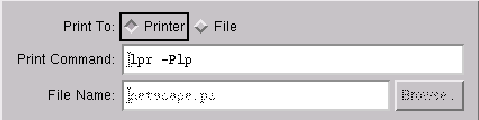
lpr.
All applications without their own printer drivers will do the
same. This means that we can generally rely on the fact that
the print filter will always receive PostScript.
gs, on the
other hand, can convert PostScript for any printer, so all that
remains is to determine its command-line options.
If you have chosen ``Print To: File,'' then you can view the resulting output
with the
gv program. Try
gv netscape.ps, which
shows a print preview. On UNIX,
most desktop applications do not have their own preview facility
because the PostScript printer itself is emulated by
gv.
Note that filter programs should not be used with remote filters;
remote printer queues can send their PostScript files ``as is'' with
:if=/bin/cat: (as in the example
printcap file
above). This way, the machine connected to the device need be
the only one especially configured for it.
The filter program we are going to use for the local
print queue will be a shell script
/var/spool/lpd/lp/filter.
Create the filter with
|
touch /var/spool/lpd/lp/filterchmod a+x /var/spool/lpd/lp/filter |
then edit it so that it looks like
|
#!/bin/bashcat | gs -sDEVICE=ljet4 -sOutputFile=- -sPAPERSIZE=a4 -r600x600 -q -exit 0 |
The
-sDEVICE option describes the printer, in
this example a Hewlett Packard LaserJet 1100. Many printers
have similar or compatible formats; hence, there are far
fewer
DEVICE's than different makes of printers. To get
a full list of supported devices, use
gs -h and also
consult one of the following files (depending on your distribution):
/usr/doc/ghostscript-?
.??
/devices.txt
/usr/share/doc/ghostscript-?
.??
/Devices.htm
/usr/share/doc/gs/devices.txt.gz
The
-sOutputFile=- sets to write to stdout (as required
for a filter). The
-sPAPERSIZE
can be set to one of
11x17,
a3,
a4,
a5,
b3,
b4,
b5,
halfletter,
ledger,
legal,
letter,
note, and others listed in
the
man page. You can also use
-g<width>x<height> to set the exact page size in pixels.
-r600x600 sets the resolution, in this case, 600 dpi
(dots per inch).
-q means to set quiet mode, suppressing any
informational messages that would otherwise corrupt the
PostScript output, and
- means to read from
stdin and not from a file.
Our printer configuration is now complete. What remains
is to start
lpd and test print. You can do that on the
command-line with the
enscript package.
enscript
is a program to convert plain text files into nicely formatted
PostScript pages. The
man page for
enscript shows
an enormous number of options, but we can simply try:
|
echo hello | enscript -p - | lpr |
21.7 Access Control
You should be very careful about running
lpd
on any machine that is exposed to the Internet.
lpd has
had numerous security alerts [See Chapter 44.]and should really only be used within a trusted LAN.
To prevent any remote machine from using your printer,
lpd
first looks in the file
/etc/hosts.equiv. This is a simple
list of all machines allowed to print to your printers. My own file
looks like this:
|
192.168.3.8192.168.3.9192.168.3.10192.168.3.11 |
The file
/etc/hosts.lpd does the same but doesn't give
administrative control by those machines to the print queues. Note that
other services, like
sshd and
rshd
(or
in.rshd), also
check the
hosts.equiv file and consider any machine listed to be
equivalent. This means that they are completed trusted
and so
rshd will not request user logins between machines to be
authenticated. This behavior is hence a grave security concern.
LPRng on RedHat 7.0 has a different access control
facility. It can arbitrarily limit access in a variety of ways,
depending on the remote user and the action (such as who is allowed to
manipulate queues). The file
/etc/lpd.perms
contains the configuration. The file format is simple, although
LPRng's capabilities are rather involved--to make a long
story short, the equivalent
hosts.equiv becomes in
lpd.perms
5 |
ACCEPT SERVICE=* REMOTEIP=192.168.3.8ACCEPT SERVICE=* REMOTEIP=192.168.3.9ACCEPT SERVICE=* REMOTEIP=192.168.3.10ACCEPT SERVICE=* REMOTEIP=192.168.3.11DEFAULT REJECT |
Large organizations with many untrusted users
should look more closely at the
LPRng-HOWTO in
/usr/share/doc/LPRng-n
.n
.nn.
It explains how to limit access in more complicated ways.
21.8 Printing Troubleshooting
Here is a convenient order for checking what is not working.
- 1.
- Check that your printer is plugged in and working. All printers have a way of printing a test page. Read your printer manual to find out how.
- 2.
- Check your printer cable.
- 3.
- Check your CMOS settings for your parallel port.
- 4.
- Check your printer cable.
- 5.
- Try
echo hello > /dev/lp0to check that the port is operating. The printer should do something to signify that data has at least been received. Chapter 42 explains how to install your parallel port kernel module. - 6.
- Use the
lpcprogram to query thelpddaemon. Tryhelp, thenstatus lp, and so on. - 7.
- Check that there is enough space in your
/varand/tmpdevices for any intermediate files needed by the print filter. A large print job may require hundreds of megabytes.lpdmay not give any kind of error for a print filter failure: the print job may just disappear into nowhere. If you are using legacylpr, then complain to your distribution vendor about your print filter not properly logging to a file. - 8.
- For legacy
lpr, stoplpdand remove all oflpd's runtime [At or pertaining to the program being in a running state.] files from/var/spool/lpdand from any of its subdirectories. (NewLPRngshould never require this step.) The unwanted files are.seq,lock,status,lpd.lock, and any left over spool files that failed to disappear withlprm(these files are recognizable by long file names with a host name and random key embedded in the file name). Then, restartlpd. - 9.
- For remote queues, check that you can do forward and
reverse lookups on both machines of both machine's
host names and IP address. If not, you may get
Host name for your address (ipaddr) unknownerror messages when trying anlpq. Test with the commandhost <ip-address>and alsohost <machine-name>on both machines. If any of these do not work, add entries for both machines in/etc/hostsfrom the example on page![[*]](crossref.png) . Note that the
. Note that the hostcommand may be ignorant of the file/etc/hostsand may still fail. Chapter 40 will explain name lookup configuration. - 10.
- Run your print filter manually to check that it does,
in fact, produce the correct output. For example,
echo hello | enscript -p - | /var/spool/lpd/lp/filter > /dev/lp0. - 11.
- Legacy
lpdis a bit of a quirky package--meditate.
21.9 Useful Programs
21.9.1
printtool
printtool is a graphical printer setup program that helps
you very quickly set up
lpd. It immediately
generates a
printcap file and magic filter, and
you need not know anything about
lpd configuration.
21.9.2
apsfilter
apsfilter stands for any to PostScript filter.
The setup described above requires everything be converted to
PostScript before printing, but a filter could foreseeably use the
file command to determine the type of data coming in
and then invoke a program to convert it to PostScript before
piping it through
gs. This would enable JPEG, GIF, plain text,
DVI files, or even
gzipped HTML to be printed
directly, since PostScript converters have been written for
each of these.
apsfilter is one of a few such filters, which are
generally called magic filters. [This is because the
file command uses magic numbers. See page .]
I personally find this feature a gimmick rather than a genuine
utility, since most of the time you want to lay out the graphical
object on a page before printing, which requires you to preview it,
and hence convert it to PostScript manually. For most
situations, the straight PostScript filter above will work
adequately, provided users know to use
enscript instead
of
lpr when printing plain text.
21.9.3
mpage
mpage is a useful utility for saving the trees.
It resizes PostScript input so that two, four or eight
pages fit on one. Change your print filter to:
|
#!/bin/bashcat | mpage -4 | gs -sDEVICE=ljet4 -sOutputFile=- -sPAPERSIZE=a4 -r600x600 -q -exit 0 |
21.9.4
psutils
The package
psutils contains a variety of
command-line PostScript manipulation programs--a must for anyone
doing fancy things with filters.
21.10 Printing to Things Besides Printers
The
printcap allows anything to be specified as the
printer device. If we set it to
/dev/null and let our filter
force the output to an alternative device, then we can use
lpd
to redirect ``print'' jobs to any kind of service imaginable.
Here,
my_filter.sh is a script that might send the print
job through an SMB (Windows NT) print
share (using
smbclient--see
Chapter 39), to a printer previewer, or
to a script that emails the job somewhere.
5 |
lp1:\ :sd=/var/spool/lpd/lp1:\ :mx#0:\ :sh:\ :lp=/dev/null:\ :if=/usr/local/bin/my_filter.sh: |
We see a specific example of redirecting print jobs to a fax machine in Chapter 33.
Next: 22. Trivial Introduction to Up: rute Previous: 20. Advanced Shell Scripting Contents